








Security Best Practices
Contents
GitHub
SSH Keys
Connecting to GitHub requires an SSH key (unless using HTTPS). Traditional SSH keys live as text files on your filesystem, making them vulnerable to theft or misuse by malware. We explicitly prohibit the use of SSH keys stored on your filesystem.
Use Secretive or 1Password to generate and store your SSH key. We have a slight preference for Secretive because it stores your key in the macOS Secure Enclave, ensuring the key can never be exported or extracted, even by malware. Always use ECDSA or Ed25519 — don't use RSA.
Note: The default shell on macOS is
zsh, so the~/.zshrcinstructions below apply to you unless you've deliberately switched to a different shell. If you're not sure which shell you're using, runecho $SHELLin your terminal to check.
Setting up with Secretive
Open Secretive and click the + button to create a new key.
Name your key "GitHub SSH" and select Notify in the Protection Level dropdown.
- For additional protection, select Require Authentication instead. This will require you to use Touch ID each time the key is accessed.
Go to Secretive > Integrations in the menu bar.
Select your shell on the left side set the
SSH_AUTH_SOCKenvironment variable as instructed. For zsh, add the following to your~/.zshrc:shThen run
source ~/.zshrcto apply it.Click on your new key in Secretive and copy the public key.
Go to your GitHub SSH keys settings and add a new SSH key. Paste your public key and set the key type to Authentication Key.
Test it by running:
TerminalYou should see a message like "Hi username! You've successfully authenticated".
Setting up with 1Password
Follow the 1Password SSH key management guide.
Commit signing
A git commit's Author field is completely user controllable and can be forged. Signing your commits cryptographically proves you authored them, preventing impersonation and confusion.
You can sign commits with either Secretive or 1Password. We have a slight preference for Secretive because it stores your key in the macOS Secure Enclave, ensuring the key can never be exported or extracted, even by malware.
Setting up with Secretive
Open Secretive and click the + button to create a new key.
Name your key "Git signing key" and select Notify in the Protection Level dropdown.
Go to Secretive > Integrations in the menu bar.
Click Git Signing and select "Git signing key" from the Secret dropdown.
Copy and paste the
~/.gitconfigand~/.gitallowedsignerssnippets into their respective files.- If you already have content in
~/.gitconfig, merge the new sections into the existing file rather than replacing it. - If you've previously configured commit signing (with a different SSH key, a GPG key, or an older Secretive key), replace any existing
signingkey,gpgsign,gpg.format, andallowedSignersFileentries — don't append duplicates. Git will silently use the last value, but a.gitconfigwith multiple conflictingsigningkeylines is hard to reason about. Confirm the active key afterwards withgit config --get user.signingkey. - The
~/.gitallowedsignersfile is used bygit log --show-signaturefor local verification. Each line is<your-git-email> <key-type> <public-key>, e.g.you@posthog.com ecdsa-sha2-nistp256 AAAA... Git-Signing-Key@.... If you skip it, signing still works but local verification will reportNo principal matched.
- If you already have content in
Select your shell on the left side of Secretive and set the
SSH_AUTH_SOCKenvironment variable as instructed. For zsh, add the following to your~/.zshrc:TerminalThen run
source ~/.zshrcto apply it.Your
~/.gitconfignow has asigningkeypointing to a file. Copy your public key to the clipboard:TerminalGo to your GitHub SSH keys settings and add a new SSH key. Paste your public key and set the key type to Signing Key.
- GitHub treats Authentication Key and Signing Key as separate roles, even for the same key. If you get "Key is already in use", it most likely means you already added this key as an Authentication Key (from the SSH Keys setup above). The same key can serve both roles — but you have to add it once for each. Add it again with key type Signing Key.
Verify the signature locally before pushing. Create an empty commit on a new branch:
TerminalYou should see a fingerprint followed by
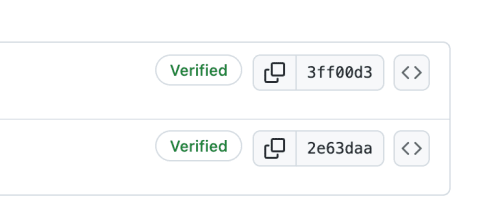
G(good signature). The fingerprint must match the Signing Key you just added on GitHub — find it at GitHub SSH keys settings under the Signing keys heading. If it matches an Authentication key entry instead, youruser.signingkeyin~/.gitconfigis pointing at the wrong file — fix it before pushing.Push the branch to GitHub — you should see a green Verified badge on the commit.
Setting up with 1Password
Follow the 1Password git commit signing guide.
After setup
Once commit signing is configured, enable the option in your GitHub Profile to "Flag unsigned commits as unverified".
Troubleshooting
If using iTerm/Cursor/GitHub Desktop/Sourcetree/etc., you may be endlessly prompted to "access data from other apps". You can fix this by granting the app Full Disk Access in System Settings > Privacy & Security > Full Disk Access.
If you are prompted to complete Touch ID each time you commit, your signing key is using a Protection Level of Require Authentication. Re-follow the instructions above to generate a new signing key with a Protection Level of Notify.
GitHub rejects your push with
GH013: Commits must have verified signatureseven though the commits look signed locally. The commit was signed with a key GitHub doesn't recognize as a Signing Key — usually because (a) the key is only registered as an Authentication Key, or (b) youruser.signingkeypoints at the wrong file. Confirm withgit log -1 --format='%GK'and cross-check the fingerprint against your GitHub keys. Once the right key is registered as a Signing Key, re-sign the existing commit:TerminalUse
--force-with-leaserather than plain--force— it refuses the push if someone else has pushed to the branch since you last fetched.
GitHub Actions
Great care should be taken when writing or modifying a GitHub Actions workflow. Actions can access (and exfiltrate) secrets scoped to the repo. We scan workflows with Semgrep and CodeQL for common misconfigurations.
Authentication
Most Actions use the default GITHUB_TOKEN, whose permissions can be scoped via the permissions property. However, GITHUB_TOKEN cannot trigger other workflows — so commits or PRs created by an Action won't run CI, leaving PRs unmergeable without manual intervention. The workaround is a Personal Access Token (PAT) or GitHub App. We use GitHub Apps because PATs are tied to an individual user and break when that user leaves PostHog.
Scope each GitHub App to its use case and ideally a single repo. Prefer creating a new App over expanding an existing one's permissions, otherwise every Action using that App inherits permissions it doesn't need.
Send a message in #team-security if you need help setting up a new GitHub App.
External contributors
In public repos, Actions may run against PRs written by external contributors. These PRs should be reviewed thoroughly before approving workflows to run against them. Otherwise, a malicious PR could gain access to and steal all of the secrets available to the repo.
Managing secrets
AWS
Application secrets are stored in AWS Secrets Manager. To modify an app's secrets, use our secrets tool.
GitHub
Secrets used by GitHub Actions are stored in GitHub secrets. All secrets should be stored in our GitHub org rather than in an individual repo. This allows us to more easily reuse secrets across repos, and also provides a holistic view of all of our secrets. The org secret should be scoped to the specific repos that need it.
Reporting a security issue
If you believe we've been hit by a security issue, raise an incident. In the best case, it'll mean security folks look at it ASAP. In the worst case, it's a false positive and we can close the incident.